Blog

  • Bash profile file for OS X

    Opening file:

    $ vim ~/.bash_profile
    

    File contents:

    PS1='\w: $ '
    git='/Users/user/Documents/SourceCode/FromGITHub'
    profile='/Users/user/.bash_profile'
    sim='/Users/user/Library/Application Support/
     iPhone Simulator/5.1/Applications'
    desktop='/Users/user/Desktop/'
    docs='/Users/user/Documents/'
    dl='/Users/user/Downloads/'
    mclient='/Users/user/Documents/mail/'
    

    Activation:

    $ source ~/.bash_profile
    

    Usage:

    $ cd "$mclient"
    $ cd "$sim"
    
  • How to remove Three20 from the project

    1. Open terminal
    2. Write something like this according to your project:

        ~/Documents/mail: $ grep -lr "three20" *
    

    3. You will see all files, that contain three20 string.
    4. The main thing to make your project compile and start working is to delete three20 entries from project.xcworkspace file, that can be found in finder by right clicking your project file and selecting show package contents. Open this file in any editor(I use Fraise) and using find delete all entries. It is not hard to do this, I had about 3-4 entries there only.
    5. Other user interface state files also may contain three20 entries, but they are not important.
    6. Also you should delete anything else concerning three20 (files, folders, header search paths, etc.). It’s more simple.

  • How to sort an array of custom objects by date in Objective C

    This is an example of sorting an array of custom objects by date in Objective C in descending order. Sorting by date is not different from sorting by NSInteger.

    There are two ways to do this. First is to use NSSortDescriptor:

    NSSortDescriptor *sortDescriptor = \
     [[NSSortDescriptor alloc] initWithKey:@"dateTime" \
     ascending:NO];
    messagesArray = [messagesArray \
    sortedArrayUsingDescriptors:[NSArray \
    arrayWithObject:sortDescriptor]];
    

    The second is to use NSComparisonResult:

     NSArray *sortedArray;
     sortedArray = [array sortedArrayUsingComparator: \
    ^NSComparisonResult(id a, id b) {
      NSDate *first = [(MCMessage*)a dateTime];
      NSDate *second = [(MCMessage*)b dateTime];
      return [second compare:first];
     }];
     array = sortedArray;
    

    To sort in ascending order change this line:

    return [second compare:first];
    
    return [first compare:second];
    

    This post helped me a lot.

  • Default color of UINavigation bar

    To make buttons the same color, as Apple’s default buttons on navigation bar, use the following:

    button.tintColor = [UIColor colorWithHue:0.6\
     saturation:0.33 brightness:0.69 alpha:0];
    

    I found this answer here.

  • Git remove all .DS_Store files recursively

    Sometimes Git doesn’t work properly with .DS_Store files in each of the folders.
    This is how to git remove all .DS_Store files recursively:

    find . -name .DS_Store -exec git rm {} +
    

    Here dot after “find” means that it will search in all folders inside current folder.
    “-exec” runs “git rm” for each found file.
    Plus means the end of the “-exec” statement.

  • Add a button like UIBarButtonItem to the center of Navigation Bar

    This is how you programmatically add a button like UIBarButtonItem to the center of Navigation Bar:

    UISegmentedControl *button = [[UISegmentedControl alloc]\\
     initWithItems:[NSArray arrayWithObjects:\\
    LS(@"Folders"), nil]];
        button.frame = CGRectMake(0, 0, 100, 30);
        button.center = self.view.center;
        button.momentary = YES;
        button.segmentedControlStyle = UISegmentedControlStyleBar;
        button.tintColor = UIColorFromRGB(0x0000DD);
        [button addTarget:self action:\\
    @selector(foldersClicked) forControlEvents:\\
    UIControlEventValueChanged];
        self.navigationItem.titleView = button;
    
  • About “Header file not found”

    I had a project, which has a static library with references to header files like this:

    #import <libetpan/libetpan.h>
    

    I couldn’t change this import line, since it was in source files, that are located in static libraries. Also, it is a bad practice to change tons of source files instead of changing just the location of header files folder in the project. I couldn’t realize what should I do, to make Xcode find those header files? I also had a folder with header files, that I can import to the project. I wasted about two days to figure out this problem but at the end I solved it.

    The error was the following:

    'libetpan/libetpan.h' file not found
    

    This is the solution.

    1. I created a folder of this structure : Libetpan/libetpan/libetpan.h.
    2. All header files were inside Libetpan/libetpan. Then I put this folder Libetpan to the project next to my *.xcodeproj file.
    3. Then I added this “./Libetpan” to the Build Settings of my Target in Header Search Paths without recursion.

    So the most important thing here is that we should put the folder with correct structure to the project. For example, if header is imported this way: #import the folder structure must be Libetpan/libetpan/(header files).

    This is the topic in StackOverflow.
  • How to generate random key in iOS

    It is a common task to generate a random n char string (alphanumeric string). It can be solved the following way. First, we generate an alphabet, that has m chars. Then in a cycle we generate random indexes from 0 to (m-1) and take a char from alphabet with random index.

        NSString *alphabet  = @"abcdefghijklmnopqrstuvwxyz \
    ABCDEFGHIJKLMNOPQRSTUVWXZY0123456789";
        NSMutableString *s = [NSMutableString stringWithCapacity:20];
        for (NSUInteger i = 0U; i < 20; i++) {
            u_int32_t r = arc4random() % [alphabet length];
            unichar c = [alphabet characterAtIndex:r];
            [s appendFormat:@"%C", c];
        }
        NSLog(@"%@", s);
        NSString *key = s;
    

    Inspired by this post

  • Setting breakpoints on all methods in XCode

    To be able to set breakpoints on all methods do the following:

    1. Switch to LLDB debugger. Go to Edit Schemes, click Run, on Info panel choose this debugger.
    2. Run your app, pause it and type the following on log:
      breakpoint set -r . -s  
      

      Here, “.” is a regular expression, where to put breakpoints. In this case it will put everywhere on everymethod. “-s” means that breakpoints will be put only in your project files, not frameworks.

    3. “br list” command allows to look at all breakpoints list. You can’t see them on Xcode UI and they will be removed after the next Run.

    Using LLDB we can put breakpoint on all ViewDidLoad methods by name, for example.

    (lldb) breakpoint set -n ViewDidLoad
    

    Also, we can put breakpoints by selector name:

    (lldb) breakpoint set -S alignLeftEdges:
    

    Inspired by this solution.

    More about LLDB debugger.

  • If XCode indexing doesn’t work

    This started to be pretty common problem for me, because I am making a very complicated project with tons of source files, that’s why I decided to paste a solution here.

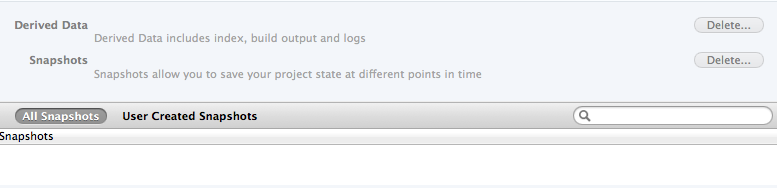
    If XCode indexing doesn’t work or by other words, if code sense is not working, try this:

    1. Open Organizer in XCode by pressing Shift + Cmd + 2
    2. Open your project tab
    3. Delete derived data

    Screenshot:

    XCode will reindex your project and code sense should start working.

    The second thing, that you can do:

    1. Open Build Settings of your project
    2. Find Header Search Paths parameter
    3. Add this : $(SRCROOT)/**
    4. Reopen your project

    It helped me once.

    Solutions were taken from here.