<br />
playImage.autoresizingMask = UIViewAutoresizingFlexibleLeftMargin | UIViewAutoresizingFlexibleRightMargin | UIViewAutoresizingFlexibleTopMargin | UIViewAutoresizingFlexibleBottomMargin;<br />
[cell.contentView addSubview:playImage];<br />
playImage.center = CGPointMake(cell.contentView.bounds.size.width/2,cell.contentView.bounds.size.height/2);<br />
Blog
-
How to center a View (ImageView) inside a UITableViewCell
-
How to build Libetpan for iOS
1. Install Autoconf, Aclocal, Libtool using these instructions. Install XCode Command Line Tools (in Download section of Organizer)
2. Run this in Terminal.
libetpan/build-mac $sh update.sh
3. Try to open Libetpan project for Mac OS X and iOS, select target for iOS and build for Simulator.
4. If any *.a file is not found, build and copy it from iOSPorts for instance. (I had problems with libetpan/build-mac/libsasl-ios/lib/libsasl2.a: No such file or directory)
5. Go here in Finder
~/Library/Developer/Xcode/DerivedData/
6. Open something like
Libetpan/Build/Products/Debug
7. Copy this, it is your library for Intel 64bit based Simulator.
8. If this library works for you (for instance, in MailCore), create .a files for your device (another processor architecture). -
UIAlertView with UITextField
I wanted to show an alertView to a user with a textField. This is what was achieved:
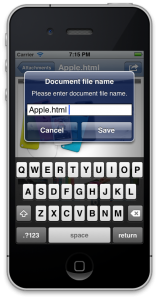
First, I tried to use Block Alerts and ActionSheets, but I failed. Then I discovered, that there is a standart way to do this. There are some UIAlertView styles available beyond a default style: UIAlertViewStyleLoginAndPasswordInput, UIAlertViewStylePlainTextInput and UIAlertViewStyleSecureTextInput. In this case we will use the second one. Works on iOS 5 and later:<br /> UIAlertView *av = [[UIAlertView alloc] initWithTitle:LS(@”Document file name”) message:@”Please enter document file name.” delegate:self cancelButtonTitle:LS(@”Cancel”) otherButtonTitles:LS(@”Save”), nil];<br /> av.alertViewStyle = UIAlertViewStylePlainTextInput;<br /> [av textFieldAtIndex:0].delegate = self;<br /> [av textFieldAtIndex:0].text = self.mcAttachDisplayed.fileName;<br /> [av show];<br />Then, you should define two protocols UITextFieldDelegate, UIAlertViewDelegate.
And implement methods:<br /> – (BOOL)textFieldShouldReturn:(UITextField *)textField<br /> {<br /> [textField resignFirstResponder];<br /> return YES;<br /> }</p> <p>– (void)alertView:(UIAlertView *)alertView clickedButtonAtIndex:(NSInteger)buttonIndex<br /> {<br /> NSLog(@”Button index clicked:%d”, buttonIndex);</p> <p> switch (buttonIndex) {<br /> case 0:<br /> break;<br /> case 1:{<br /> NSLog(@”Save Clicked”);<br /> UITextField *textField = [alertView textFieldAtIndex:0];<br /> NSString *text = textField.text;</p> <p> break;<br /> }<br /> default:<br /> break;<br /> }<br /> }<br />References:
StackOverFlow question -
How to Work With Flags in MailCore
Recently I was guessing, how to work with flags in MailCore, where a flag is NSUInteger. I got answer from MailCore Librelist.
The flags are stored as bitwise operations. If you want to check to see if a message is deleted, for example, you can do the following bitwise operation:
if (coreMessage.flags & CTFlagDeleted) {
            NSLog(@"Message has been deleted.");
}
More explanation from me.
This is a list of Flags:
/** List of Message Flags **/

#define CTFlagNew		MAIL_FLAG_NEW
#define CTFlagSeen		MAIL_FLAG_SEEN
#define CTFlagFlagged		MAIL_FLAG_FLAGGED
#define CTFlagDeleted		MAIL_FLAG_DELETED
#define CTFlagAnswered		MAIL_FLAG_ANSWERED
#define CTFlagForwarded		MAIL_FLAG_FORWARDED
#define CTFlagCancelled 	MAIL_FLAG_CANCELLED
Meaning of the right column here is:
enum {
  MAIL_FLAG_NEW       = 1 << 0,
  MAIL_FLAG_SEEN      = 1 << 1,
  MAIL_FLAG_FLAGGED   = 1 << 2,
  MAIL_FLAG_DELETED   = 1 << 3,
  MAIL_FLAG_ANSWERED  = 1 << 4,
  MAIL_FLAG_FORWARDED = 1 << 5,
  MAIL_FLAG_CANCELLED = 1 << 6
};
Let's use a Decimal to Binary converter.
For instance, 34 is 100010. We see, that 2nd and 6th bits are not null. So Flags are CTFlagSeen and CTFlagForwarded. Since CTFlagSeen = MAIL_FLAG_SEEN = 1 << 1 in binary. It means, that we should shift by 1 symbol and compare 2nd symbol in 100010. It is 1, or YES. The same is for CTFlagForwarded which is a shift by 6. If flags = 50, then binary is 110010. Flags are CTFlagSeen, CTFlagAnswered, CTFlagForwarded. Let's now assume, that we want to remove CTFlagSeen flag. What should we do? If we do this: flags = flags^CTFlagSeen we will get this in bit level: (110010)^(1<<1)=(110000), so the flag will be removed. If there was no flag, it will be installed, when we use XOR operator, represented by ^ symbol. If 18, then 10010. Flags are CTFlagSeen (10) and CTFlagAnswered(101).
-
How To Change Back Button Title Of Navigation Bar On iOS
The key moment here is that you should change backBarButtonItem before pushing your view controller, where you expect to change back button title. Change only the title of item doesn’t work, the whole button should be replaced.
<br /> UIBarButtonItem *backButton = [[UIBarButtonItem alloc] initWithTitle:LS(@”All”) style:UIBarButtonItemStyleBordered target:nil action:nil];<br /> self.navigationItem.backBarButtonItem = backButton;<br /> [self.navigationController pushViewController:messageViewController animated:YES];<br /> -
How To Simulate 3G/2G Internet in iOS
To simulate 3G/2G Internet in iOS use Network Link Conditioner. To get it:
- Open XCode menu.
- Click Open Developer Tool
- More Developer Tools… or go directly here
- Download and install Hardware IO Tools for Xcode
-
Case Insensitive Method to Find a String in Another String in iOS
Can be used to filter data under search bar. Personally I have developed it for this purpose.
Case Insensitive Method to Find a String in Another String in iOS:
<br /> – (BOOL)findString:(NSString*)searchString inString:(NSString*)bigString<br /> {<br /> if ([bigString length]==0) {<br /> return NO;<br /> }</p> <p> if (!([bigString rangeOfString:searchString options:NSCaseInsensitiveSearch].location == NSNotFound)) {<br /> return YES;<br /> }</p> <p> return NO;<br /> }<br /> -
UISearchBar and UISearchDisplayController with Custom Cells Programmatically
This post is not a full tutorial of how to implement this. It is just my experience description. Probably, you have the same problem with custom cells, as I had. There are a lot of tutorials, search them in Google. Another nice tutorial.
I had highly customized cells, but couldn’t understand, why do they mess up, when search starts and self.searchDisplayController.searchResultsTableView is displayed with regular cell, but not customized cells. I tried to find solution for about 2-3 hours, then I decided to make exactly the same, as others did for using custom cells. I solved the problem, that was in the absence of two delegate properties in my code. This is the correct version, of how you should initialize your UISearchBar and UISearchDisplayController (if you are doing it programmatically).
Code for ViewDidLoad method:
// Search bar
searchBar = [[UISearchBar alloc] initWithFrame:CGRectMake(0, 0, 320, 44)];
searchBar.delegate = self;
searchBar.tintColor = cell_end_color;
self.tableView.tableHeaderView = searchBar;

searchDisplayController = [[UISearchDisplayController alloc] initWithSearchBar:searchBar contentsController:self];
searchDisplayController.delegate = self;
searchDisplayController.searchResultsDataSource = self;
searchDisplayController.searchResultsDelegate = self;
The other parts are pretty analogous to the usual search bar usage with regular cells. For instance, look at Apple’s source code on this topic.
What is interesting, this works fine on iPad too even thought the frame is 320 px here.
References:
UISearchBar Class reference -
How to Change String Encoding from KOI8-R to UTF8 in Objective-C
KOI8-R is an 8-bit character encoding, designed to cover Russian, which uses the Cyrillic alphabet. I was getting a fileName from IMAP in this encoding and wanted to convert it to normal readable UTF-8.
My question concerning this issue in stackoverflow was banned. I had to solve this myself and spent quite a bit of time.
There is one solution, that works for many encodings – to use CFString methods:
<br />
– (NSString*)decodeKOI8R:(NSString*)stringToDecode {</p>
<p>    CFStringRef aCFString = CFStringCreateWithCString(NULL, [stringToDecode UTF8String], kCFStringEncodingKOI8_R);<br />
    NSString *decodedString = (__bridge NSString*)aCFString;</p>
<p>    return decodedString;<br />
}<br />
But for some reason it worked for UTF-7 but didn’t for KOI8-R.
I searched Google for hours, but couldn’t find a solution. Suddenly, I found a solution in MailCore CTBareAttachment class method, called decodedFilename.
This is ObjC code of that method:
<br />
-(NSString*)decodedName {<br />
    return MailCoreDecodeMIMEPhrase((char *)[self.name UTF8String]);<br />
}<br />
This is a C language method, that converts char* to the NSString with a proper encoding.
<br />
NSString *MailCoreDecodeMIMEPhrase(char *data) {<br />
    int err;<br />
    size_t currToken = 0;<br />
    char *decodedSubject;<br />
    NSString *result;</p>
<p>    if (*data != ‘\0’) {<br />
        err = mailmime_encoded_phrase_parse(DEST_CHARSET, data, strlen(data),<br />
                                            &currToken, DEST_CHARSET, &decodedSubject);</p>
<p>        if (err != MAILIMF_NO_ERROR) {<br />
            if (decodedSubject == NULL)<br />
                free(decodedSubject);<br />
            return nil;<br />
        }<br />
    } else {<br />
        return @””;<br />
    }</p>
<p>    result = [NSString stringWithCString:decodedSubject encoding:NSUTF8StringEncoding];<br />
    free(decodedSubject);<br />
    return result;<br />
}<br />
Here
<br />
#define DEST_CHARSET “UTF-8”<br />
and mailmime_encoded_phrase_parse is a pretty complex method, that is not easy even to copy paste here. So, this problem seems to have no easy solution, except using this C method. Actually this method parses a phrase and calls decoding C method for each word. And I ended up using it.
-
iPhone 5: Что нового
Показали iPhone 5. Многие слухи оправдались. Что нового по сравнению с 4S:
1. Он стал тоньше и легче на 20%.
2. Процессор A6, который мощнее A5/A5X в 2 раза.
3. Экран длиннее: 640х1136 вместо старых 640×960. Диагональ больше на пол дюйма. Цвета насыщеннее на 44%.
4. Почти та же оптика, но качество фото выше. Панорамная съемка.
5. Меньше коннектор.
6. Поддержка LTE сетей.
7. iOS 6. Но она будет доступна на всех iPhone начиная с 3GS и на iPad2/New.
8. Задняя крышка из металла, а не стекла.Подробнее тут
