I have written a bunch of shell scripts for my Mac, that do a lot of work automatically.
First script renames all files in a folder sequentially and gives the names with numbers starting from 64:
a=64
for i in *.jpg; do
    new=$(printf "%d.jpg" ${a})
    mv ${i} ${new}
    let a=a+1
done
The second script creates copies of those files and adds “_mini” to the file name. It creates future miniatures of images.
for f in *.jpg; do
    cp -v $f ${f%.jpg}_mini.jpg
done
The third script deletes all files in a folder that do not match a pattern with “_mini” word:
shopt -s extglob
rm !(*_mini.jpg)
And the last script crops images to the given size:
for i in *.jpg
	do
		convert $i -gravity Center -crop 287x185+0+0 $(basename $i .jpg).jpg
	done
It is also possible to resize images in other ways, for example percentage:
for i in *.jpg; do
convert $i -resize 10% $(basename $i .jpg).jpg; done
Here are the full instructions for ImageMagick.
Here is an information on copying files.
And here is an information on deleting by pattern.
Finally we get something like this:
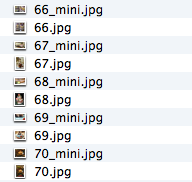
Final script:
cd "/Users/Denis/Desktop/Cakes"

#Renaming
a=1
for i in *.jpg; do
    new=$(printf "%d.jpg" ${a})
    mv ${i} ${new}
    let a=a+1
done

#Create copies
for f in *.jpg; do
    cp -v $f ${f%.jpg}_mini.jpg
done

#Delete original images
shopt -s extglob
rm !(*_mini.jpg)

#Resize, create miniatures
for i in *.jpg
do
	convert $i -resize 287 $i
	convert $i -gravity North -crop 287x185+0+0 $i
done
This script rename files with spaces in their file names:
#!/bin/bash
SAVEIFS=$IFS
IFS=$(echo -en "\n\b")
a=1
for i in *.mp3; do
	echo "$i"
	printf "%d.mp3\n" ${a}
    new=$(printf "%d.mp3" ${a})
    mv "$i" ${new}
    let a=a+1
done
IFS=$SAVEIFS
Here you can read more about treating spaces in file names in bash scripts.